
A sports camp or holiday club is one of the nicest things a club, school or youth organisation can offer, and one of the most work to register. Parents want to know which weeks still have room, they book three children for two different weeks, and they ask whether lunch is included. If registrations arrive by email and payments by bank transfer, you spend more evenings reconciling lists than planning games.
Below are the decisions that make registration easy, for summer camps and for the shorter camps in the autumn, Christmas, February and Easter holidays: prices, siblings, health questions and cancellations. After that, a step-by-step guide to a summer camp registration form that takes payment, caps every week and keeps a waiting list.
In short:
- Decide up front whether you sell whole weeks, single days or both, and how many children fit in each.
- Ask for one registration per child when places are limited. It keeps the counting honest.
- Only ask for the medical information you will actually use, and plan when you delete it.
- Write your cancellation policy down before registration opens, not after the first cancellation.
Decide these three things before registration opens
Weeks, days or both
Most camps run per week, Monday to Friday. Some also sell single days, which suits parents who only need cover for a day or two, but a day can then only be sold while it still has room, also for the children booked for the whole week. Decide early whether you offer single days at all, and whether a whole week costs less than five separate days.
Places per week and per group
Count your places from the bottom up: how many coaches or leaders you have, how many children each can supervise, and how much space the hall or field offers. If you split children by age (4 to 6, 7 to 9, 10 to 12), every age group in every week has its own maximum. Those numbers become the limits in your form.
When registration opens
Popular camps fill up within hours. Announce a fixed opening moment, such as a Saturday at 10:00, so parents who work during the day have the same chance as everybody else.
Pricing tips for a sports or holiday camp
- Keep the base price simple. One price per week, or one per day. Complicated formulas lead to questions and mistakes.
- Say what is included. Lunch, snacks, a T-shirt, insurance: parents compare camps on price, and a clear list prevents questions.
- Price extras separately. Aftercare or a hot lunch is easier to charge as an extra than to bake into the price, because not every family needs it.
- Decide on a sibling discount, or decide not to. It is friendly, but it has to be checked. More on that below.
- Include the payment in the registration. A place that is paid is a place that is taken. Registrations "to pay later" are the ones that never show up.
Siblings: one registration per child
Families often want to register two or three children at once. It is tempting to allow that in one form, but think about how places are counted first. In TinyForms a maximum counts registrations, not children: one registration that lists three children takes one place in a week, not three. With room for 24 children per week, that would let you end up with far more than 24.
So when places are limited, the honest advice is: one registration per child. Parents fill in the form once for every child, which takes a minute longer and keeps every count correct. Two things make that easier for them:
- Rename the button under the thank-you message to "Register another child", so it leads straight back to the form.
- Do not switch on "one answer per email address" for this form, or the second child of the same parent would be refused.
For a sibling discount, give the form a question such as "Is a brother or sister already registered?" and show those who answer yes a second weeks question at the lower price instead of the regular one. Its options can take their places from the regular weeks (see shared places below), so both prices fill the same group. The discount relies on what parents say, so check it in your export before the camp starts.
Medical information and privacy
A camp needs to know about allergies, medication, diabetes, epilepsy or anything else a leader must be able to act on. That is health data, which the GDPR treats as a special category, so collect it with care:
- Ask only what you will use. "Allergies or medical conditions we should know about" and "Medication during the camp" usually cover it. Skip the full medical history.
- Explain why you ask in the help text of the question, and who gets to see the answers.
- Collect a medical form as a file if your club or insurer requires a signed form or a vaccination card.
- Plan the deletion. Decide how long you keep the answers. In TinyForms the retention period of your workspace deletes submissions automatically after the number of days you choose. Pick a period that runs past the end of your camp, because registrations often come in months ahead (Free keeps submissions for up to 30 days, Pro for up to a year).
Cancellations and refunds
Children get ill and plans change. Put your policy in the form, in a consent checkbox above the submit button, so nobody can say they did not know. A common policy: a full refund up to two or three weeks before the camp, a refund with a medical certificate after that, and no refund once the camp has started.
When a family cancels, cancel their registration in TinyForms. The place in that week becomes free straight away, and if the registration was paid, the same dialog offers to refund it through Mollie in one step. The registration stays readable under Cancelled, together with the refund, so you can always look back at who cancelled and what went back to them.
How to build the registration form with TinyForms
You can build this form in about half an hour. Start from the event registration template, which already asks for contact details, has prices and maximums per option and takes payment.
Running the camp for your own club? The sports club registration template already asks for date of birth, address, medical notes and photo consent, which you can reuse.
Step 1: Ask for the child and a parent
The child's name, date of birth and age group, and a parent's name, email address and phone number. The confirmation email then goes to the parent.
Step 2: List the weeks with a maximum each
Add a checkboxes question "Which weeks?" with one option per week, so parents can book several weeks in one registration. In the question's settings, switch on "Limit selections per option" and type the number of places beside each week. Switch on "Show how many spots are left" as well: parents see that a week is filling up, and quiet weeks get chosen sooner. Each week a registration ticks takes one place in that week.
If your age groups run separately, make one question per age group and show only the right one with conditional logic, based on the age group answered in step 1.
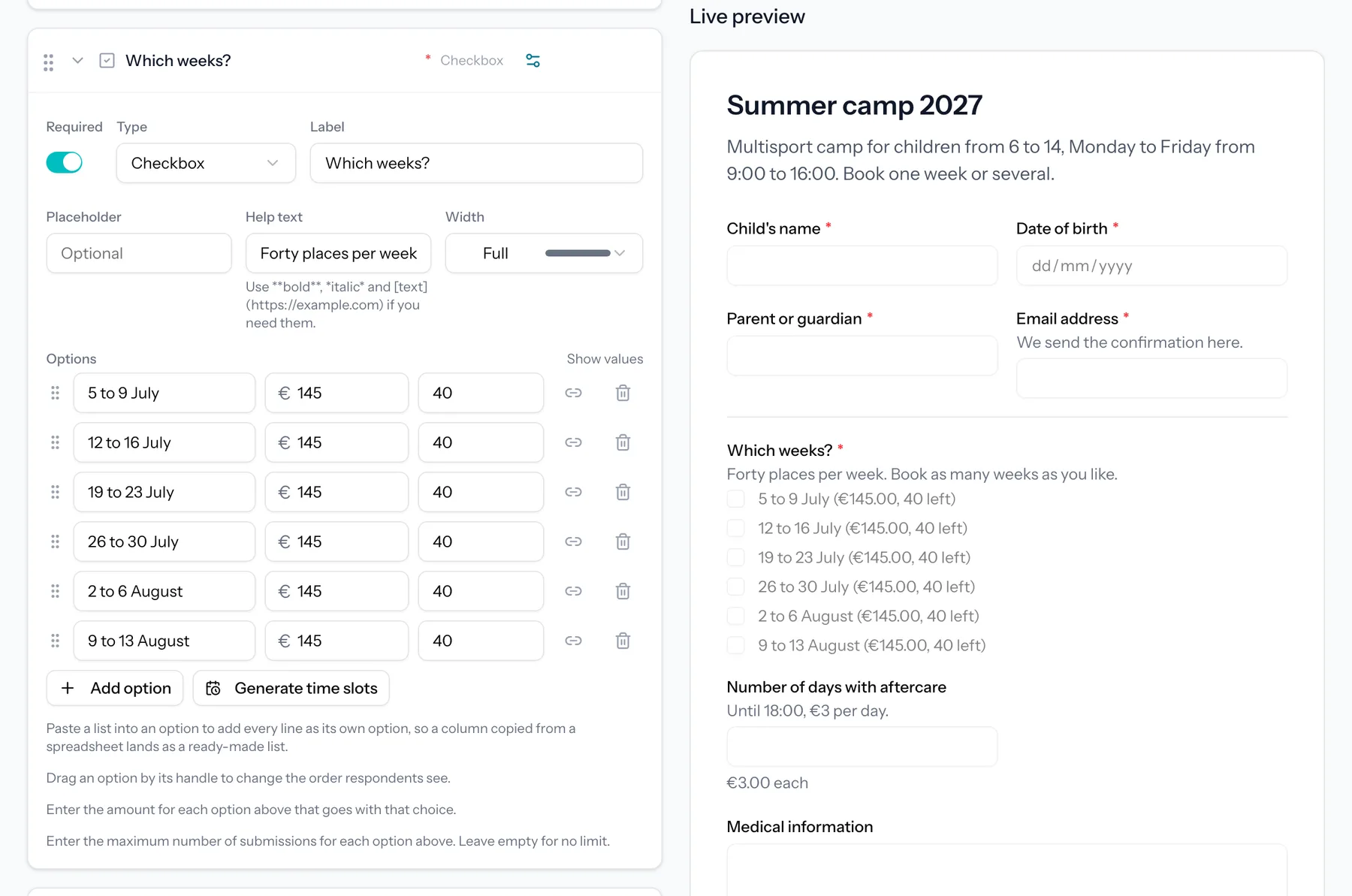
Step 3: Give each week its price
Turn on payments for the form, then open the weeks question and switch on "This field affects the amount". Each week gets its own price, and the total adds up the weeks a parent ticks.
Step 4: Sell whole weeks and single days from the same places
Offer single days as well? Add a question with the days of a week, each holding the places (24 per day, say), and a question with the whole week. Link the whole week to the five days it covers with the chain-link button beside the option. It now takes one place on each of those days instead of having a maximum of its own, so 24 places stay 24 places however parents book, while the whole week keeps its own, lower price. Its counter shows the tightest day: once Wednesday is full, the whole week is full too.
Show the single days only to parents who did not pick the whole week, because booking both would take two places on the same day and charge both. The help article on submission settings walks through linking places step by step.
Step 5: Add extras with a price per unit
For aftercare or a hot lunch, add a number question such as "Number of days with aftercare" with a price per unit. The total follows the number entered, so five days at 3 euro add 15 euro. Give the question a maximum so the number stays sensible.
Step 6: Collect the medical details and the medical form
Add a long text question for allergies and medication, and a file upload for the signed medical form or vaccination card if you need one. Uploaded files are stored privately: only people in your workspace can download them.
Step 7: Take payment while parents register
Connect your own Mollie account once in the workspace settings. The form then charges the total at the moment someone registers, with the payment methods you have switched on in Mollie, and the submission list shows who has paid. The money goes straight to your account. Payments through Mollie explains it in more detail, and Finding your Mollie API key gets you connected.
Step 8: Keep a waiting list
A full week is never the end of the story: there are always cancellations. How you set up the waiting list depends on how you sell the weeks.
- One form per week (or per camp). Give the form a maximum number of registrations, equal to the places in that camp, and switch on its waiting list. Once the camp is full, the form turns into a waiting list automatically, with its own set of questions. People on it do not pay anything.
- One form with all weeks, each with a price. On a question with prices, a full week cannot become a waiting list: one registration would then mix a paid week with an unpaid, queued one. A full week therefore disappears from the list. Add a line to the form ("Week full? Join the waiting list") with a link to a small separate waiting-list form.
- A free camp. Without prices on the weeks question, choose "Keep it as a waiting list" when an option is full. Parents can still pick a full week; the registration is saved with that week marked as waiting list.
In all three cases nobody moves up automatically. When a place frees up, you contact the first family on the list yourself, which also gives you the chance to check that they still need it.
Step 9: Open at a fixed time and confirm the details
Schedule the opening date and time in the form's settings, so the form opens by itself at the moment you announced. In the confirmation email, repeat the weeks someone booked and add the start and pick-up times, what to bring and the address.
Which plan do you need?
The limits per week, the counter of places left, shared places, waiting lists, conditional logic and a scheduled opening are available on every plan, including Free. Taking payment through Mollie, prices per option and per unit, file uploads and the repeater are part of the paid plans, starting with Pro. Compare them on the pricing page.
Frequently asked questions
Can parents register several children in one registration?
Technically yes: the repeater question (part of the paid plans) lets parents add a row per child. But a maximum counts registrations, not children, and a price per week is charged once per registration, not per child. For a camp with limited places, one registration per child is the reliable choice. The repeater is fine for something without a cap per child, such as a family day.
Can parents pay by bank transfer instead?
Yes. Payment is optional per form. Switch payments off and mention your bank details in the confirmation email. You then check the transfers yourself, which is exactly the work online payment saves you.
What happens to the place when I cancel a registration?
It becomes free straight away, both for the maximum per week and for the maximum of the whole form. If the registration was paid, you can refund it in the same step.
Can I change the number of places while registration is open?
Yes. Raise or lower the maximum of a week, publish the form again, and the counter follows. Registrations already made stay valid.