Your payment provider Link to this section
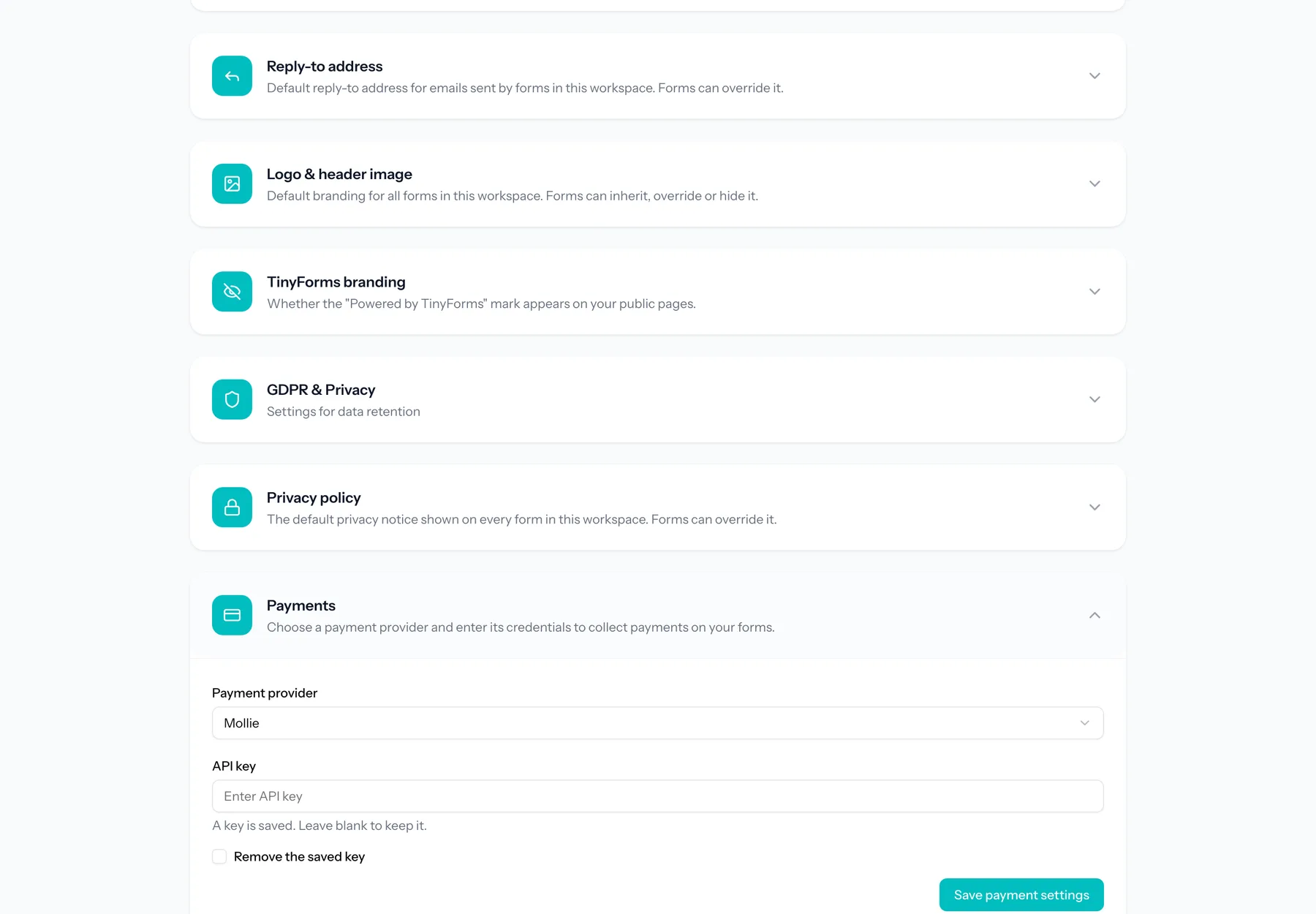
Each workspace chooses its own payment provider, Mollie or Stripe, and adds the API key of its own account. The key is stored encrypted and is used to create payments for forms in that workspace, so the money goes straight to your own account. Respondents pay on the payment page of your provider, in the language of the form, with the methods your account offers.
Already have a Stripe account for a webshop or for donations? Then you can use it here instead of opening a second account. For Stripe, TinyForms checks the key as you save it and sets up the webhook in your Stripe account by itself, so there is nothing to configure in the Stripe dashboard. If the key is refused, the settings say why and nothing is saved.
Keep your key safe
Treat your API key like a password. If you suspect it has leaked, rotate it with your provider and update it here.
Test mode Link to this section
A test key (starting with test_ at Mollie, or rk_test_ or sk_test_ at Stripe) gets a Test mode label in the settings. Payments made with it are simulated and no real money moves, which is how you try out the whole flow. Paste the live key before you share your forms.
Switching provider Link to this section
You can switch between Mollie and Stripe at any time. New payments then go through the provider you picked, and the key of the other one stays saved: payments that already started through it are still confirmed and can still be refunded through it. Remove a key only once no payment through that provider is still open.