Export to CSV Link to this section
Export the responses of a form to a CSV file to open in a spreadsheet or share with colleagues.
Plan feature
CSV export is available on every plan, including Free.
Insights Link to this section
The insights view inside the form editor summarises what came in: how many answers you have, how many people opened the form, the conversion between those two, where your visitors came from, and a breakdown per question. Numbers get an average and a spread, choices get a count per option, and free-text fields show how often they were filled in.
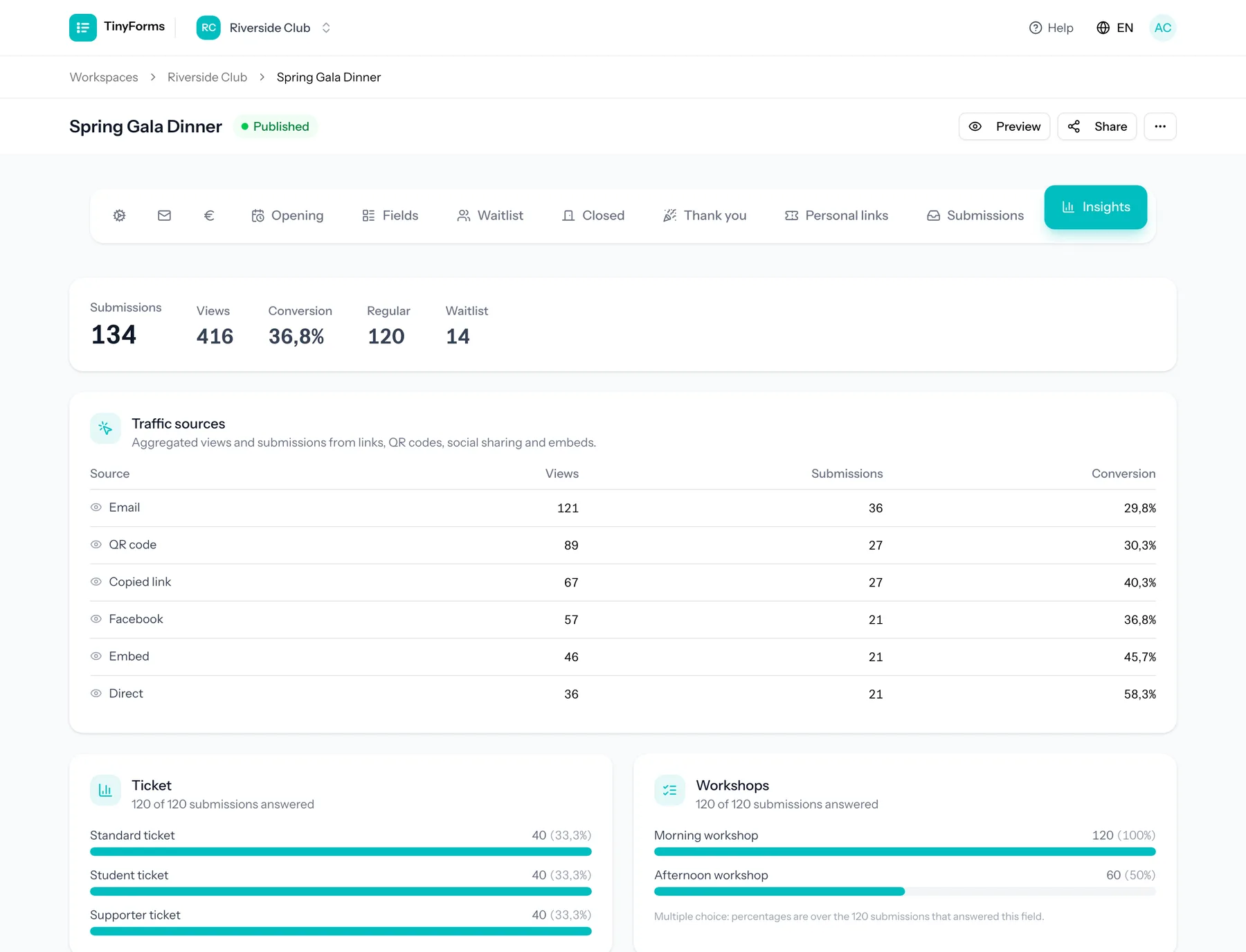
A form that takes payments also shows its revenue here, explained in the next section.
What your retention period leaves behind
Visitor counts, traffic sources and drop-off are kept as daily totals, so those stay once your retention period removes the submissions. The breakdown per question is read from the answers themselves and shrinks along with them, so export before that window closes if you want to keep the detail.
To start the counters over, for example after testing a form or before reusing it for a new edition, use Reset statistics at the top of the insights. Views, traffic sources, conversion and drop-off go back to zero, while the submissions stay. When you clear all submissions of a form you can tick the same option in the confirmation. Unlike the submissions, which wait in the bin, reset statistics cannot be brought back. Only owners and admins can reset them. The revenue is not reset: it is a record of money, not a counter.
Revenue Link to this section
On a form that takes payments, the insights show what it brought in over its whole life: the amount received, the amount refunded, the net amount that stays, and the number of payments. A chart shows the money per day, or per week once a form has been taking payments for more than two months. Hover over a bar for the exact amounts, or switch to a table.
Answers that are still waiting for their money are shown apart: how many there are and how much they owe together. These are the pending and failed payments of answers that were not withdrawn or deleted, the same list the Unpaid filter shows.
A payment counts on the day it came in, and a refund on the day it went back, so the net amount drops on the day you refund someone. Every payment that arrived counts, also when someone paid the same registration twice: that money was received, until you refund one of the two.
Owners and admins also find Revenue in the workspace menu, at the top left. It lists every form that takes payments with what it received, refunded and is still owed, adds them up, and downloads as CSV or Excel for your treasurer.
Amounts before 23 September 2026
Since 23 September 2026 the record of a payment stays when its submission is deleted. Payments that were erased together with their submission before that day can no longer be counted, so a form that was already in use then shows a note that its earlier amounts may be incomplete. Your Mollie dashboard remains the complete record.
Where people stop Link to this section
A form split into pages also shows how far people got: how many opened it, how many reached each following page, and how many stopped in between. The page that loses the most is called out, since that is usually the one worth rewriting or shortening.
Counts, not people
Only how often a page was reached is stored, per day. There is no cookie, no identifier and nothing that ties one page to the next, so this can say how many got that far but never who.