Viewing responses Link to this section
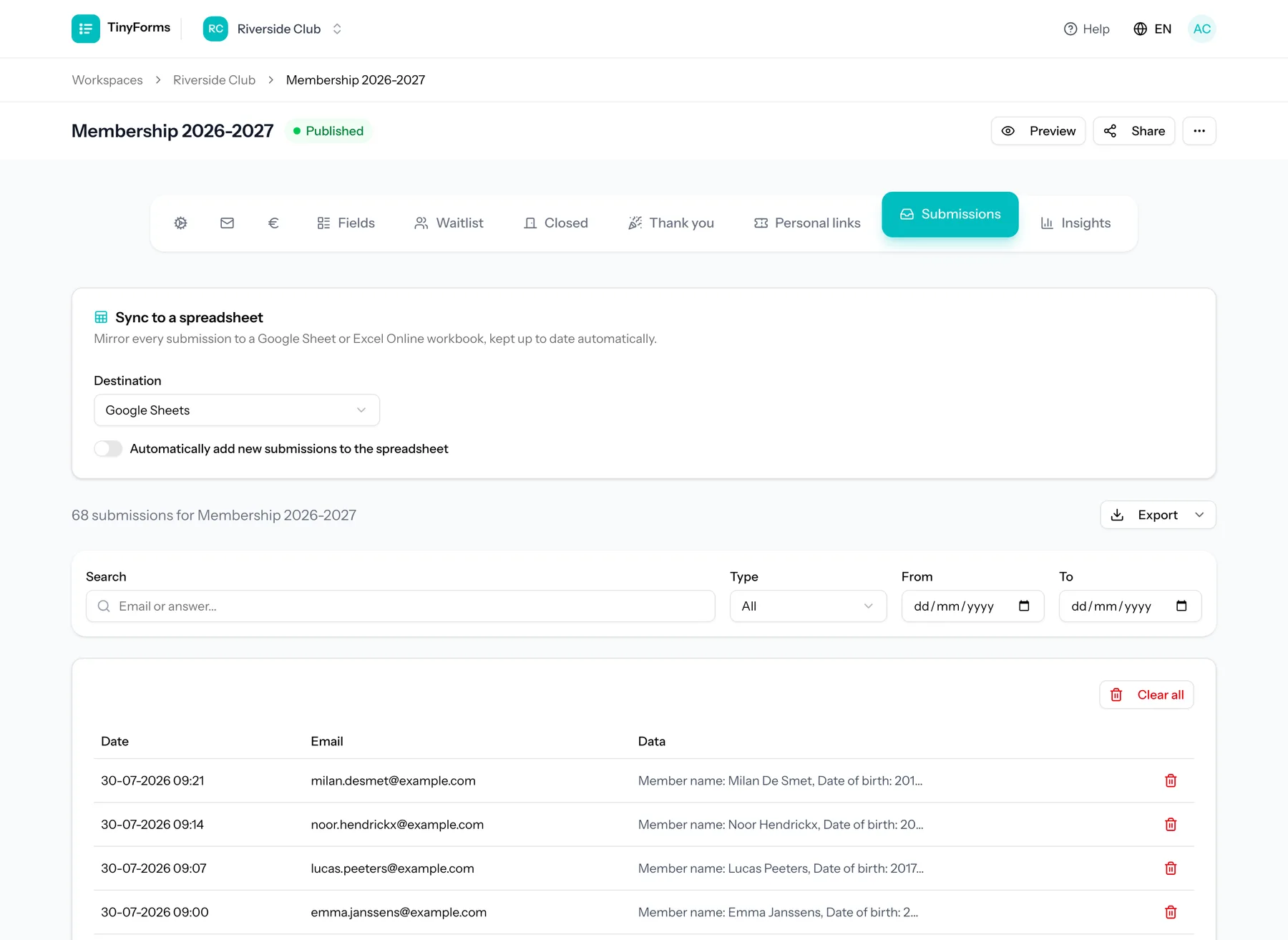
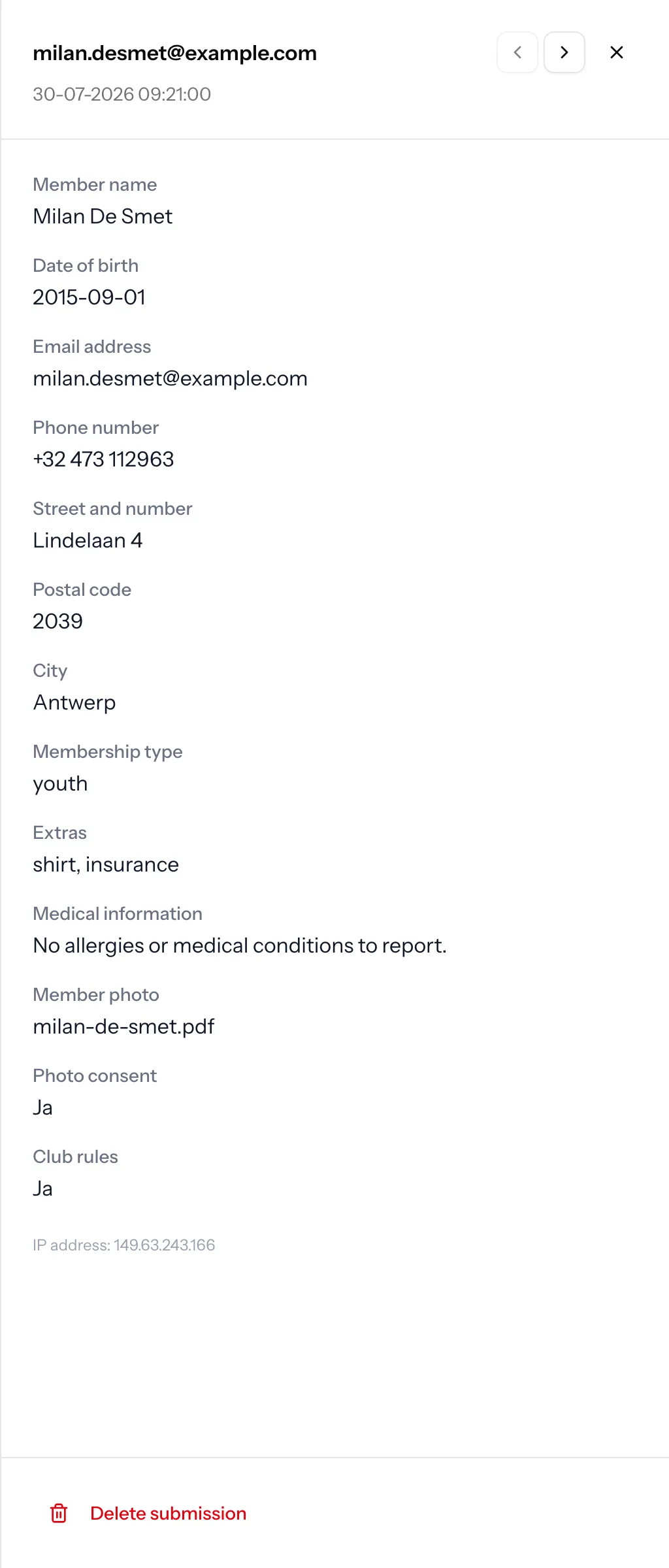
Open any submission to see a clear recap of every answer with its field label, plus any uploaded files ready to download. Each record also captures the submitter email (when provided), whether it came from the waitlist and whether its place was confirmed, and its payment status. Owners and admins also see the IP address and browser during the first 30 days.
Your own note and labels Link to this section
Next to what the respondent wrote, every submission has room for what you know about it. An internal note is free text only people with access to this workspace can read: it is never emailed, never resolved into a placeholder and never shown on the form, so it can say the thing you would not put in a message.
Labels are the short words you sort the list by, such as 'Paid cash', 'Needs a table' or 'Called back'. Type one and press Enter to add it, click the cross to take it off. Up to twenty per submission.
Labels show up as a column in the submissions list, and clicking one narrows the list to it; the same choice sits in the filter bar, offering the labels this form already uses. Typing a label that only differs in capitals files it under the spelling the form already has, so one pile never ends up as two.
They travel with your export
A CSV or Excel download of a form that uses them carries two extra columns at the end: the labels of each row and its internal note. A synced Google Sheet or Excel Online workbook does not, since its columns were fixed when the sheet was created.
Cancelling a registration Link to this section
Cancelling withdraws a registration without erasing it. The place it took comes free again straight away, so someone else can book it and the same person can register anew. The record stays under Cancelled, together with the refund you made, so months later you can still see who cancelled and what went back to them.
If the registration was paid, the cancellation dialog offers to refund it in the same step. That box starts ticked, because a cancelled registration nearly always means the money goes back.
The place is freed
A cancelled registration no longer counts towards a maximum number of submissions or towards a limit on a single option, so a date that was full opens up again the moment you cancel.
Refunding a payment Link to this section
Refunding is its own action, separate from cancelling and deleting. You can send the money back through your payment provider while the registration stays exactly as it is, or cancel and refund in one step. Once the refund has gone out, the submission is marked as refunded, with the amount and the date.
Only what TinyForms sent
A refund you made by hand in your Mollie or Stripe dashboard does not show up here. TinyForms only records the refunds it sent itself.
Deleting and the bin Link to this section
Deleting is for records that should not be there at all: a test entry, a duplicate, spam, or an erasure request. A deleted submission moves to the bin, where it stays restorable for 30 days, uploaded files and all. After that it is erased for good. Its payment record stays on the Payments tab, without the submission. Emptying the bin does the same straight away.
Clearing all submissions of a form moves the whole list to the bin in one go, so a mis-click can still be undone. Submissions are also removed automatically once your retention period passes.
What this does to your numbers
The breakdown per question is read from the answers themselves, so removing them removes them from there too. The visitor, traffic-source and drop-off numbers are daily totals and are not affected. Money received stays in the revenue of the form and on its Payments tab, and your payment provider keeps its own record, which nothing here touches.